Application Memory is RAM held by apps, and a high figure alone isn't a failure. Investigate when Memory Pressure turns yellow or red, or Swap Used keeps rising, especially if your Mac is stalling.
The popular advice to close whichever app has the biggest memory number skips the most important question: is the Mac struggling to provide memory? A busy Mac can use most of its RAM efficiently. Making the used-memory figure smaller isn't a useful goal if your work already runs smoothly.
Table of Contents
- What Application Memory Means on a Mac
- The Memory Numbers Worth Trusting
- How macOS Fills RAM Before It Swaps
- How to Check Memory in Activity Monitor
- Apps and Habits That Inflate Memory
- How to Find and Cut the Real Leak
- Decide Between a Restart and More RAM
What Application Memory Means on a Mac
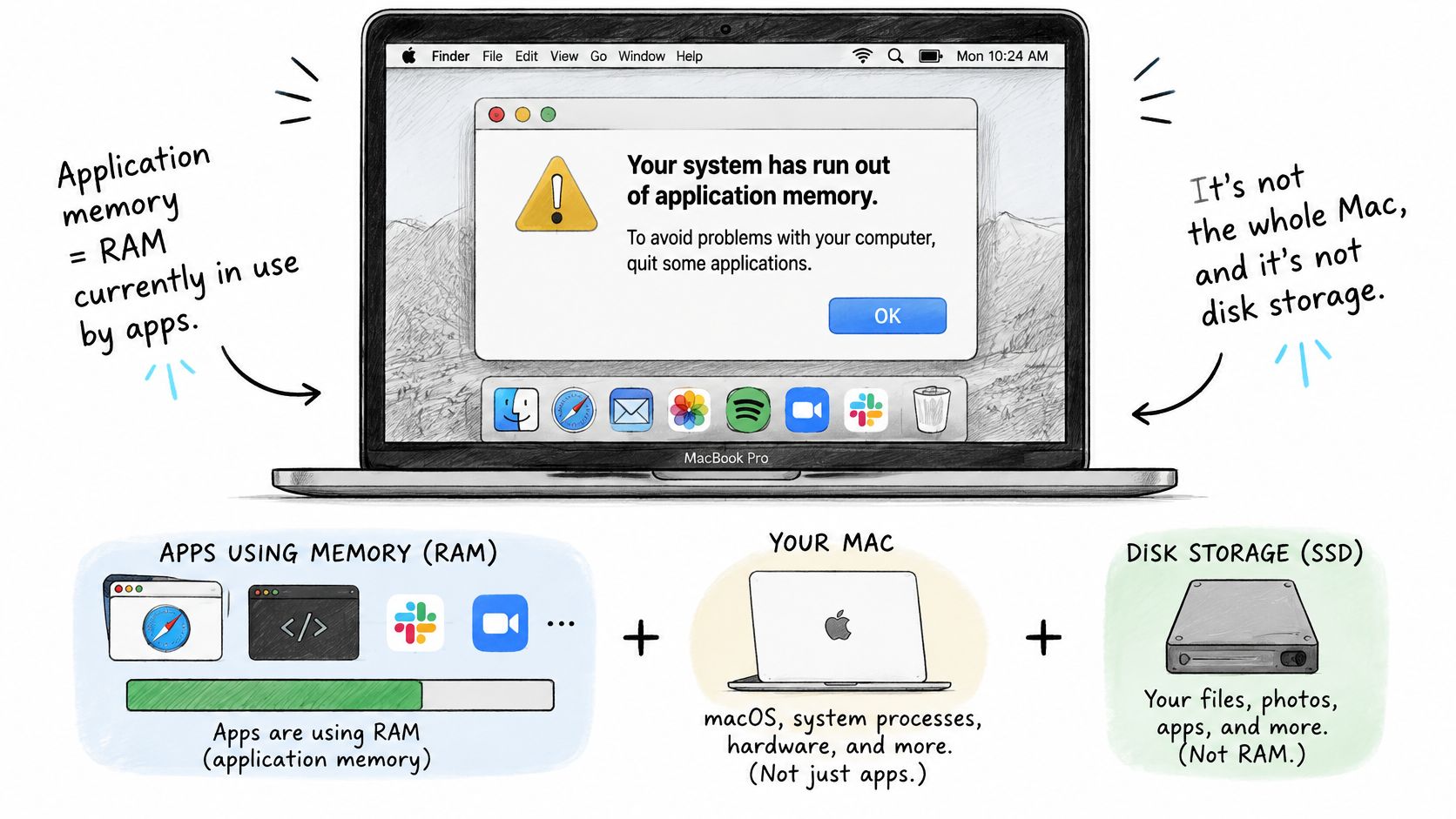
You're editing a document when a dialog says your system has run out of application memory. Behind it, your browser still works, an editor hesitates, and you're wondering whether to delete files or quit everything.
Start by saving work in any app that still responds. The warning concerns the memory available to running applications, not the amount of storage left for documents, photos, and downloads. Deleting a large download won't make a growing application release the RAM it holds.
Think of RAM as your working desk
RAM is the desktop where you keep work you're using. Cached files are papers left within reach because you might need them again; compression is stacking some papers more tightly; swap is moving material to a filing cabinet and retrieving it when needed.
A nearly full desk can still work well. The practical question is whether you can start the next task without repeatedly stopping to rearrange everything.
This diagram separates application memory from disk storage.
Match the warning to the right readings
Open Activity Monitor's Memory tab and you'll meet several related labels:
- Memory Used and App Memory help distinguish overall RAM use from applications' share.
- Wired Memory and Compressed describe memory the system must retain or has squeezed into less space.
- Cached Files and Swap Used show reusable file data and memory backed by storage.
Those labels aren't interchangeable. A high App Memory reading with green pressure doesn't automatically mean an app is leaking, and a large cache isn't a pile of junk that needs deleting.
For a local-service perspective on memory decisions, MackTechs' memory guidance for Philadelphia Mac users is a useful companion when considering your machine's capacity.
You don't need Terminal commands to investigate. You need the pressure graph, a sorted process list, and enough observation to distinguish a demanding project from an application that won't stop growing.
The Memory Numbers Worth Trusting
| Metric | What it counts | Healthy reading | Act when |
|---|---|---|---|
| App Memory | RAM currently used by apps | Can be high while the Mac feels fine | Pressure is yellow or red, or an individual app keeps growing |
| Wired Memory | Memory the system must keep and cannot cache out | A steady system baseline | It is large and pressure is red |
| Compressed | Data squeezed in RAM to delay heavier swapping | Rises as needed, then steadies | It keeps climbing alongside red pressure |
| Cached Files | File data kept in RAM for quick reuse | High cache with green pressure | Don't clear it just to free RAM |
| Swap Used | Disk space used to hold memory moved out of RAM | Near zero or stable during responsive work | The number rises while apps stall |
| Memory Pressure | Free memory, swap rate, wired memory, and file cache considered together | Green means RAM is being used efficiently | Yellow means more RAM may eventually be needed; red indicates a shortage |
These distinctions follow Apple's Activity Monitor memory guide, which defines application, wired, compressed, cached, and swapped memory and explains the pressure indicator.
Read the table as a set of decision rules, not target values. There isn't a universal App Memory number that every healthy Mac must stay below. A photo editor working on a layered project and a text editor displaying a short note have different jobs.
Read the summary and process list differently
The App Memory figure in the bottom summary describes applications collectively. An individual row in the process list helps you investigate a particular process. Don't mistake the collective figure for one app's allocation.
Likewise, Memory Used isn't a synonym for memory used by the windows you can see. macOS also needs memory for system work, and some applications have background helpers without their own visible windows.
Wired Memory deserves particular care. Because the system must retain it, you can't treat it like an optional application and clear it. If wired memory appears troublesome alongside severe pressure, record the surrounding conditions rather than force-quitting unfamiliar system processes.
Practical rule: Judge a large number by what happens while you work, not by how impressive it looks in a screenshot.
Look for movement, not just magnitude
A stable reading and an increasing reading tell different stories. Swap that remains unchanged during responsive work is less concerning than swap that increases whenever you switch windows and wait.
Compressed memory needs the same context. Its presence shows that macOS is managing demand; it doesn't independently prove that something has failed. Continued growth alongside worsening pressure deserves investigation.
Keep your interpretation tied to the task. If opening a project causes an increase that settles, the app may just be holding its working material. If the same process continues expanding while you do nothing new, you have a reason to test it.
Don't close apps merely to make Memory Used smaller when pressure stays green and swap is flat. That changes the display without establishing that you've improved performance.
How macOS Fills RAM Before It Swaps
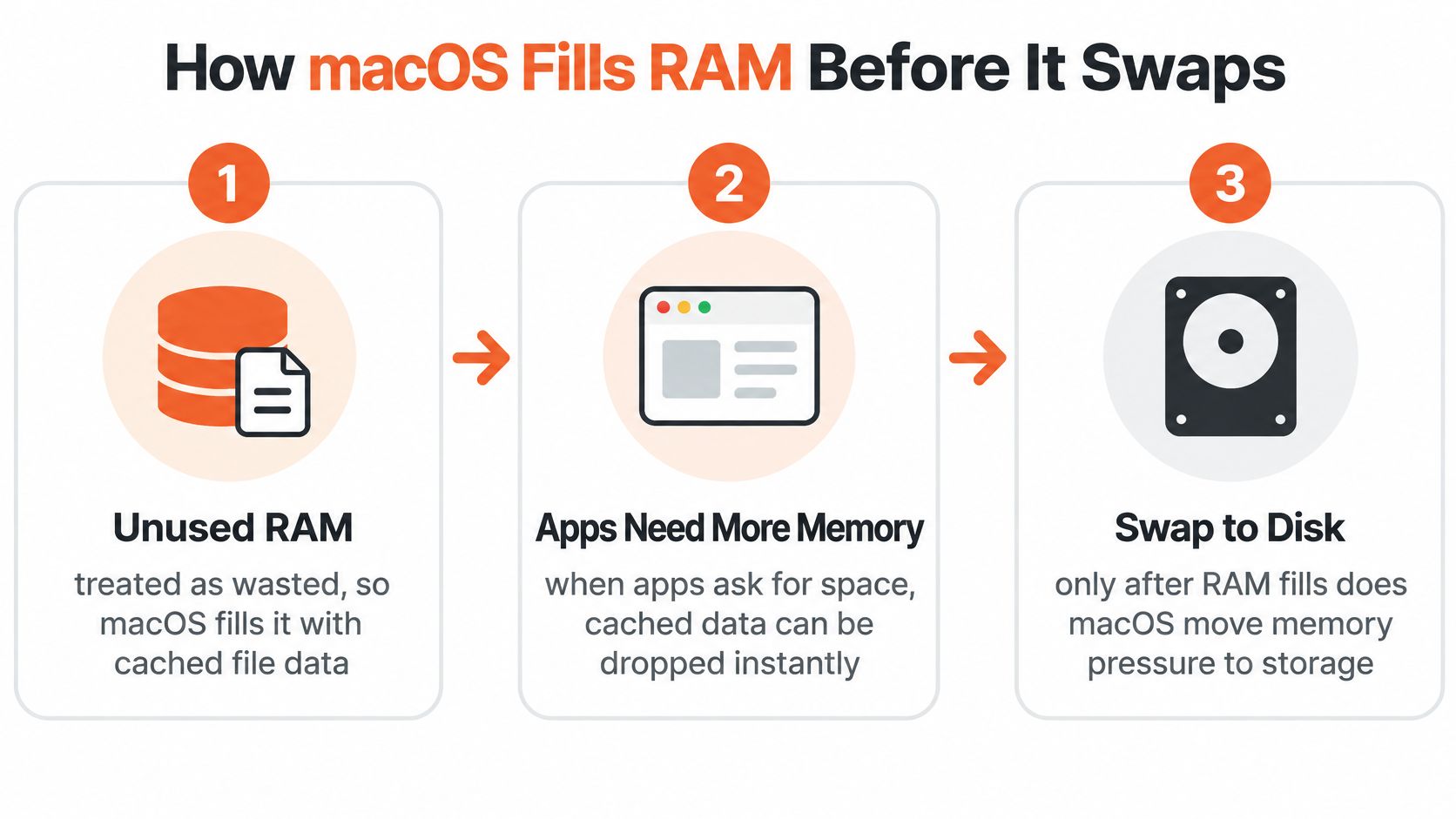
Unused RAM doesn't need to remain empty to be useful. macOS can keep file data available for reuse, reclaim space when applications need it, compress memory, and use storage-backed swap to accommodate demand.
The diagram gives a simplified view of that progression.
Cache, compression, and swap serve different purposes
Caching saves reusable file contents in RAM. When an application needs room, macOS can reclaim cached space rather than preserve it at the expense of active work.
Compression keeps memory contents in RAM while reducing the space they occupy. That gives the system another way to accommodate applications without depending as heavily on storage.
Swap lets macOS move memory contents between RAM and the startup disk. When your workload repeatedly needs material that must be brought back from storage, you may notice pauses while switching apps or returning to a document.
This isn't a rigid queue in which every cached file disappears before any compression or swap occurs. Treat the illustration as a conceptual map, not an exact timeline for every allocation.
Apple's guidance on checking whether a Mac needs more RAM supports judging the system by memory pressure rather than RAM occupancy alone.
Compare a busy Mac with an overloaded one
Say your Mac has a substantial document open, a browser session, and a large cache. Memory Used looks nearly full, but changing windows is immediate and Swap Used remains steady. Closing applications just to create empty RAM would interrupt useful work without addressing a demonstrated problem.
Now consider a different session. Each time you return to an application, its process grows, pressure worsens, and swap increases while the Mac pauses. That pattern deserves investigation even if another app still holds more memory overall.
A healthy Mac can have little visibly unused RAM. The important test is whether it can handle the next piece of work efficiently.
The video provides another way to follow the memory-management concepts.
Keep diagnosis separate from removal. An application that needs substantial memory for a legitimate project isn't necessarily defective, and uninstalling it isn't the first response to a crowded Memory tab.
How to Check Memory in Activity Monitor
Check memory while the slowdown is happening, if the Mac remains responsive enough. Restarting first may remove the pattern you need to identify the cause.
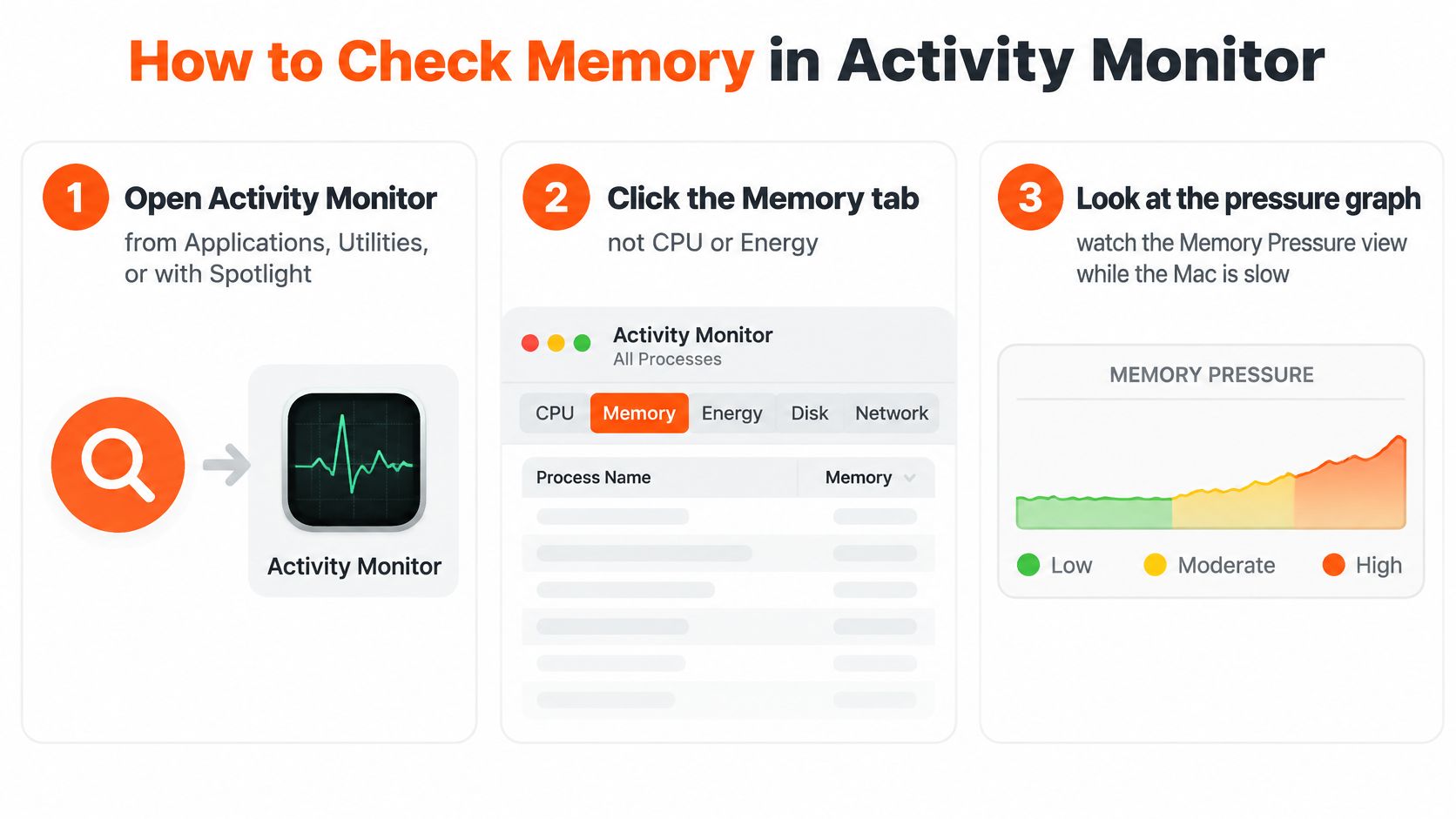
The opening actions are straightforward.
Follow the task while watching the graph
-
Open Activity Monitor. In Finder, open Applications, then Utilities, then Activity Monitor. Alternatively, use Spotlight to search for the app.
-
Select the Memory tab. CPU and Energy answer different questions, so make sure you're looking at the correct view before interpreting the list.
-
Inspect Memory Pressure first. Notice whether the graph changes during the slowdown. A brief excursion and pressure that remains high throughout your work aren't the same pattern.
-
Find Swap Used in the bottom summary and note its value. Keep working normally, then check whether it has increased rather than treating its mere presence as a failure.
-
Click the Memory column header to place the largest processes at the top. If the smallest appear first, click again to reverse the order.
-
Read each process name, not just its memory figure. A browser renderer, GPU helper, or extension process may belong to an application whose main row looks comparatively modest.
-
Leave Activity Monitor open and repeat the task that felt slow. Open the same document, return to the same web app, or run the same project operation, then watch which process changes.
The bottom summary brings Physical Memory, Memory Used, App Memory, Wired Memory, Compressed, Cached Files, and Swap Used into one view. Keep that summary visible while you inspect individual processes so you don't lose the system-level context.
Avoid the screenshot trap
A common misread is to compare your Memory Used figure with a friend's Mac and assume yours is unhealthy. Different applications, projects, background work, and installed memory make that comparison unhelpful without pressure and swap behavior.
A more useful record includes:
- The task: What you opened or changed immediately before the slowdown.
- The process: Which named application or helper increased.
- The response: Whether pressure worsened, swap increased, and work visibly stalled.
Don't use Activity Monitor's Force Quit option as a way to tidy the list. Save work and use an application's normal Quit command when possible; force quitting an unresponsive app can lose unsaved changes.
If pressure remains healthy while the Mac is slow, keep an open mind. CPU load, storage activity, or another bottleneck may need attention instead of memory.
Apps and Habits That Inflate Memory
The top of the Memory column often reflects what you've asked the Mac to do. Browsers, creative applications, virtual machines, and development tools can all hold substantial working material without malfunctioning.
The useful distinction is memory that follows the workload versus memory that keeps growing without a corresponding reason.
A designer's large project
Say a designer opens a layered image, adds adjustments, and compares several versions. The editor moves to the top of Activity Monitor, but the Mac stays responsive.
That allocation has an understandable purpose: the app needs working space for the document and editing operations. Closing the project and observing what happens afterward is more informative than deciding the application is wasteful because it ranks first.
Virtual machines and local development or AI tools need similar context. Check whether a machine is running, a model is loaded, or a build is active before judging their footprint.
A chat app that grows while nothing changes
Consider a laptop that starts normally but becomes sluggish after a chat app has remained open through repeated work sessions. Its process keeps expanding even when the user isn't opening new conversations or performing a demanding action.
That's a suspected leak or runaway behavior, not a confirmed diagnosis. An extension, embedded content, background operation, or application bug could explain the growth. The important clue is that the increase doesn't settle when the activity does.
Chat and writing applications built around browser technology may also maintain their own browser components. Several such apps can contribute a meaningful baseline even when their windows appear quiet.
A browser and video call competing for space
A browser session may spread its memory across tabs, extensions, and helper processes. Add a video call and an open creative project, and the combined demand can become uncomfortable even when no individual application is broken.
This situation calls for distinguishing necessary work from accumulated background activity:
- Browser tabs: Separate the pages you're actively using from dashboards, media, and web apps left open.
- Login items and menu-bar utilities: Check what starts automatically and stays resident.
- System processes: Don't assume WindowServer or a Spotlight-related process is unwanted merely because it becomes prominent during display changes or indexing.
A large process can be doing useful work. A small process can still be the one whose repeated growth pushes the whole session into trouble.
These scenes lead to different remedies. A legitimate project needs capacity or less competing work; unexplained growth needs a controlled retest; background accumulation needs a review of what remains running.
How to Find and Cut the Real Leak
Start with the pressure graph and swap trend, then investigate the process that changes with the slowdown. Apple's guidance on checking application memory recommends checking applications when pressure is yellow, red, or showing spikes, rather than treating high Memory Used alone as the problem.
This flow keeps the investigation focused on a pattern instead of a single large reading.
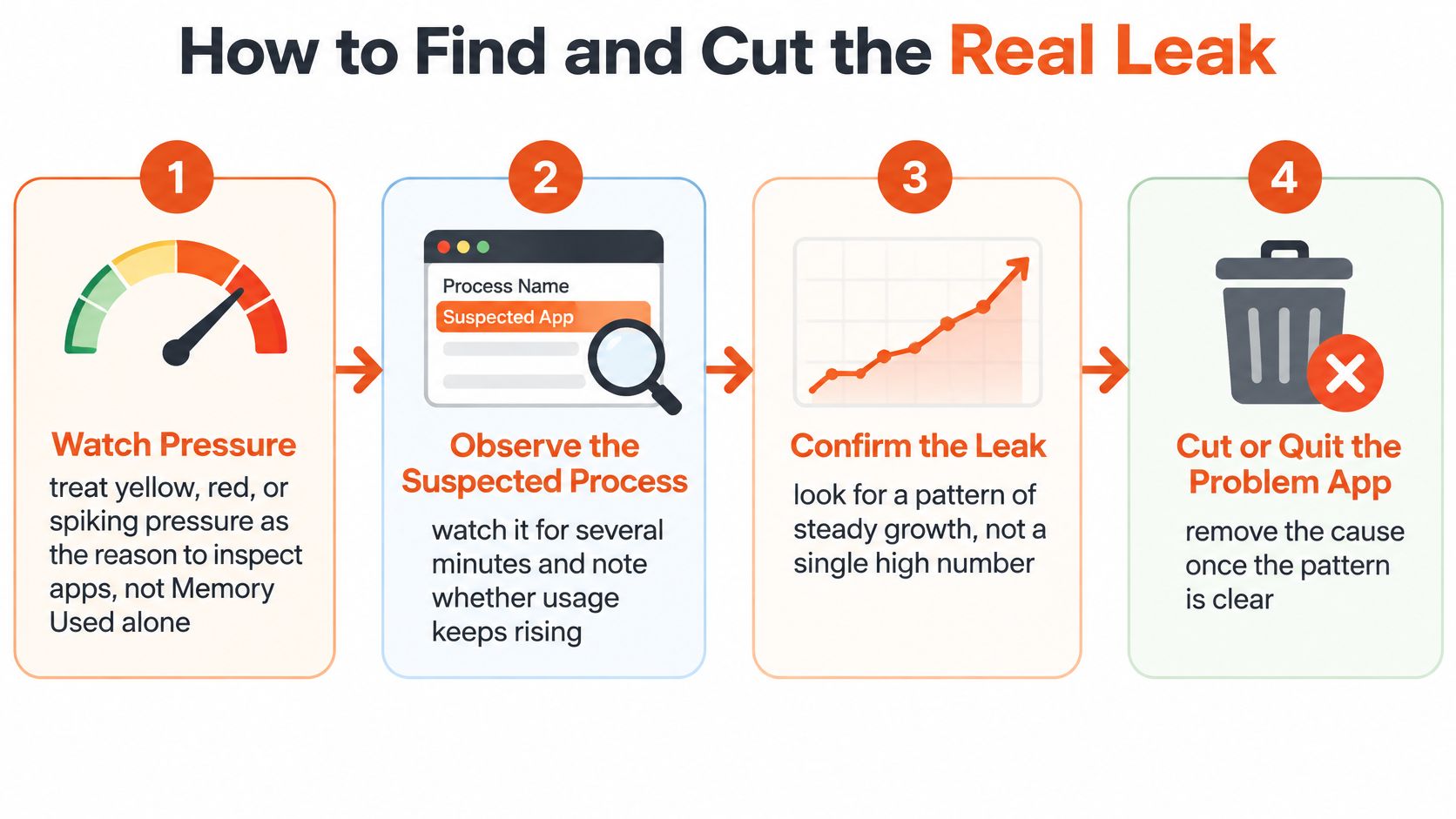
Quit, retest, and isolate the trigger
-
Observe before changing anything. Watch the suspected process during ordinary work. Record whether its growth coincides with increasing swap, worse pressure, and visible stalls.
-
Save your work, then quit the suspected app normally. Check whether pressure improves and swap stops increasing. Swap doesn't have to disappear immediately for the test to be useful.
-
Relaunch with a simpler setup. Reopen the app without optional extensions, plug-ins, or unnecessary browser tabs, then repeat the action that caused trouble. Change one element at a time so the result means something.
-
If several required applications are large while open, reduce concurrency. Close work you don't need for the current task instead of force-quitting everything.
-
Restart when recovery remains poor. A restart gives you a clean comparison after saving work. A high but stable Swap Used reading by itself isn't a requirement to reboot.
-
If severe pressure returns immediately after login, review login items and background applications. Disable nonessential items and repeat your usual task before concluding that the hardware is insufficient.
-
Update the app and macOS, then retest. If you can reproduce continued growth, give the developer the process name, triggering action, and observed memory behavior.
Match the symptom to the next move
| What you see | Likely cause | Next move |
|---|---|---|
| Out-of-memory dialog, red pressure, swap climbing | Demand beyond available memory, possibly a growing app | Save work, quit that app, then watch pressure |
| High App Memory, green pressure, flat swap | Active work accommodated without current memory stress | Leave it running; don't force-quit |
| Yellow spikes during one task | Combined workload exceeds comfortable capacity | Close unused apps and retest that task |
| One process climbs for hours, then drops on quit | Possible app leak or runaway extension | Relaunch without extensions and update the app |
| Swap stays high after the big app quits | Previously swapped memory remains allocated | Recheck responsiveness; restart if problems persist |
| Red pressure right after a clean login | Login item, background problem, or insufficient capacity | Disable nonessential login items and retest before planning more RAM |
A quit-and-relaunch test narrows the cause, but it doesn't prove a programming-level memory leak. Use suspected leak until the pattern is reproducible or the developer confirms it.
Don't clear caches as a substitute for this investigation. Removing reusable files doesn't repair an application that keeps allocating memory, and it can leave the original trigger untouched.
Decide Between a Restart and More RAM
A full Memory bar alone is not a reason to buy a new Mac. The better guide is sustained yellow or red Memory Pressure during your normal work, especially when Swap Used keeps rising. A brief spike during a demanding task may well reflect a busy session.
Choose the outcome that fits
-
Stay with the current Mac if everyday work remains comfortable and the trouble stops after you update or simplify an app. High Application Memory can be healthy caching, so a large allocation by itself does not mean the Mac needs more RAM.
-
Change habits if problems arise only when several demanding tasks overlap. Pause a virtual machine during a call, close a finished editing project, or trim a long browser session before starting another heavy task.
-
Plan for more memory if necessary work repeatedly brings sustained pressure and slowdowns after app problems and background items have been ruled out. Base the decision on the applications you need to run together, not on an ideal session with everything closed.
Restarting can clear a temporary problem, but it cannot add capacity to a Mac that regularly struggles with its normal workload.
Apple silicon's unified memory is not a user-replaceable module. On those Macs, more memory means choosing a higher-capacity configuration in a future Mac. Some older Intel models allow upgrades, but compatibility depends on the exact model. Check a guide to upgrading RAM in older MacBooks before buying parts.
Use a restart as recovery, not a ritual
If pressure stays yellow or red and the Mac remains difficult to use after you save work and close unnecessary apps, restart. A restart is a practical recovery step when memory trouble affects normal use, not a way to make a healthy graph look emptier.
Then reopen the task that caused trouble. Watch whether Memory Pressure settles and Swap Used stops climbing. If the task runs comfortably, the Mac is handling that workload; if the same strain returns, consider whether the app or the Mac's memory capacity is the limiting factor.
We help support teams turn website content, documents, and Q&A pairs into AI support agents with human handoff. Visit AgentStack to build an agent around your support guidance.